

Adjusting line height in SwiftUI on iOS 26
On iOS 26, we have a new SwiftUI modifier, lineHeight(_:), for adjusting the distance between the baselines of two subsequent lines of text. This modifier accepts a new AttributedString attribute, AttributedString.LineHeight, which can also be used separately for styling attributed strings.
There are a few options available in this new API, so I thought I would look through how they behave in practice.
# LineHeight type properties
The most direct way to adjust a line height is by using one of the built-in static properties on the AttributedString.LineHeight, such as loose or tight, for example. These presets allow for quick adjustments without the need for precise manual control.
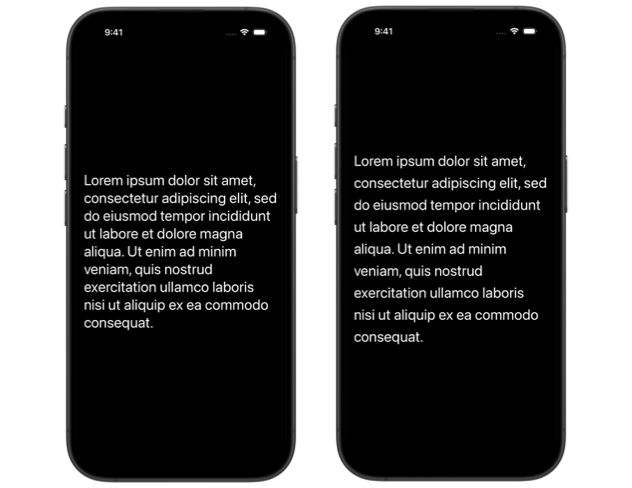
The loose line height increases the vertical distance between lines, resulting in a more open layout for paragraph text.
Text(loremIpsum)
    .lineHeight(.loose)
Below is a comparison showing the default line height on the left versus the loose configuration on the right.
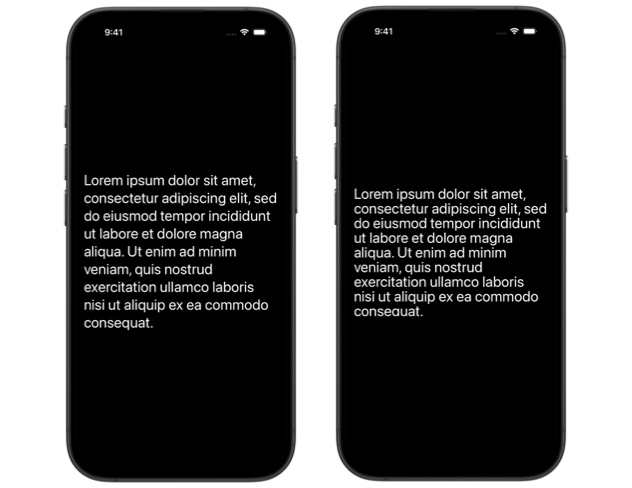
Conversely, the tight preset reduces the baseline distance, creating a more compact vertical layout.
Text(loremIpsum)
    .lineHeight(.tight)
The left screen shows the default height, while the right screen demonstrates the increased density of the tight configuration.
The other two options, normal and variable, don't appear significantly different from the default line height in my experimentation. Documentation defines normal as a constant line height based on a multiple of the point size perceived as normal, whereas variable uses a height based specifically on font metrics.
If no line height is specified, SwiftUI will automatically select the appropriate one based on the context.
# LineHeight type methods
To get more precise control over the text layout, we can use the static methods provided by AttributedString.LineHeight instead of just the static presets. These allow us to define the baseline distance using specific numerical values.
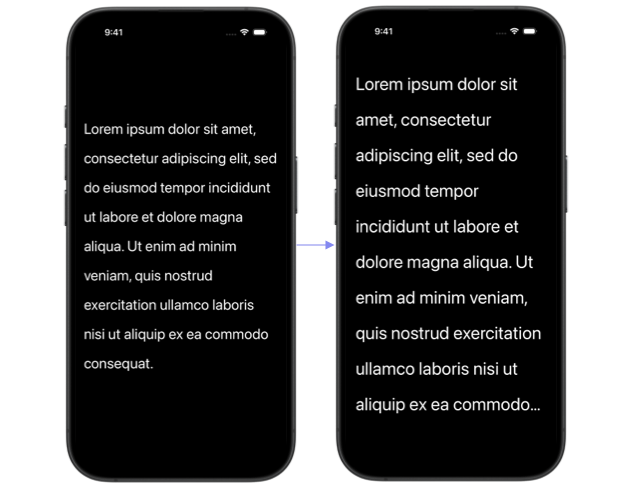
The multiple(factor:) method sets a constant line height based on a multiple of the font's point size. For example, we can set the line height to double the font's point size, to give the paragraph a very spaced-out feel.
Text(loremIpsum)
    .lineHeight(.multiple(factor: 2))
When the font size increases with Dynamic Type, the line height scales along with it, maintaining the same proportional spacing.
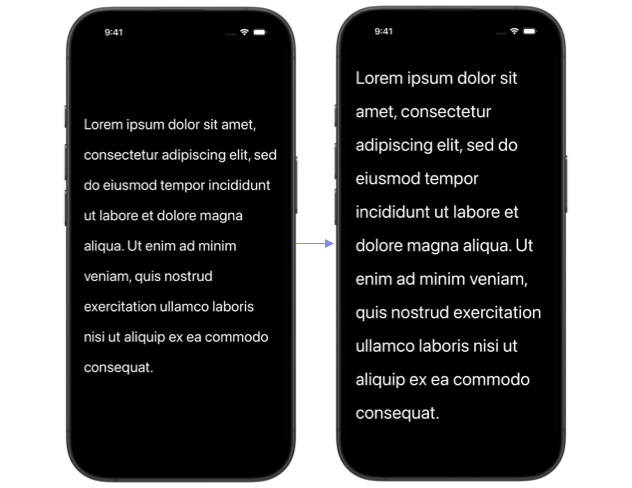
We also have leading(increase:), which keeps the line height relative to the point size and adds a fixed numerical increase.
Text(loremIpsum)
    .lineHeight(.leading(increase: 30))
Since this method is still relative to the point size, the line height will continue to grow as the font size increases with Dynamic Type, but the point increase will remain constant.
For absolute control, we can use exact(points:). This sets a constant line height based on a fixed total value in points, completely bypassing any relative calculations based on the font size.
Text(loremIpsum)
    .lineHeight(.exact(points: 30))
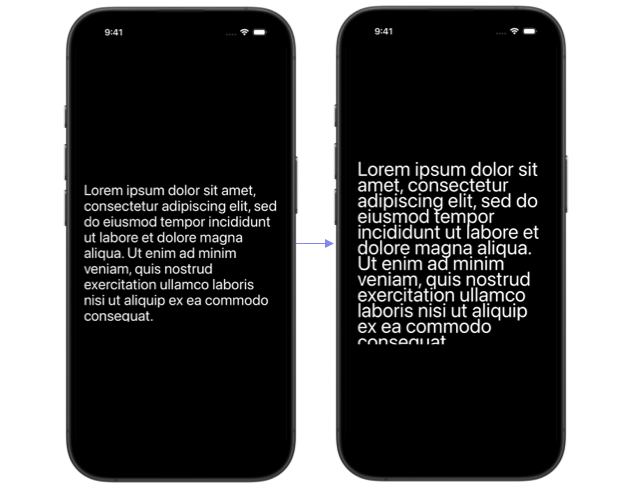
We should be careful when setting an exact line height value, though, as it won't adjust with Dynamic Type and can result in unreadable text. Since the baseline distance remains fixed, the lines may eventually overlap or even become cut off if a user increases their system font size.
lineHeight(_:) vs lineSpacing(_:)
While the lineHeight(_:) modifier is new in iOS 26, the lineSpacing(_:) modifier has been available for a while. The difference between the two is that lineHeight(_:) defines the distance between the baselines of two subsequent lines of text, whereas lineSpacing(_:) sets the amount of spacing from the bottom of one line to the top of the next.
Because lineHeight(_:) comes with a variety of configurations and presets, it seems more versatile for modern layouts. I think I'll be using it more often than line spacing in my apps, though it always depends on the specific requirements of the project.
leading(_:) font modifier
SwiftUI also provides the leading(_:) font modifier that can be applied directly to an instance of a Font to adjust its line spacing.
Text(loremIpsum)
    .font(.title.leading(.loose))
The leading(_:) font modifier has been available since iOS 14. It takes Font.Leading parameter which is an enum with only three cases standard, loose, and tight.
Applying line spacing adjustments using this modifier results in a very subtle change, which may be good in some layouts, but is quite limiting in most cases.
I covered SwiftUI font modifiers in more detail in a separate article a while back - Font modifiers in SwiftUI.
It's encouraging to see the continued evolution of text APIs in SwiftUI, and having new options like lineHeight(_:) with its various configurations is a welcome improvement for fine-tuning typography. I think it would also be great to see more detailed documentation on text APIs in general, though, to make it easier for developers to understand how new additions fit into the broader text system on Apple platforms.
If you are looking to build a strong foundation in SwiftUI, my book SwiftUI Fundamentals takes a deep dive into the framework's core principles and APIs to help you understand how it works under the hood and how to use it effectively in your projects. And my more recent book The SwiftUI Way helps you adopt recommended patterns, avoid common pitfalls, and use SwiftUI's native tools appropriately to work with the framework rather than against it.
For more resources on Swift and SwiftUI, check out my other books and book bundles.
Work with SwiftUI. Not against it.$35
A field guide to SwiftUI patterns and anti-patterns
The SwiftUI Way
- Avoid common SwiftUI pitfalls
- Build deeper intuition for the framework
- Gain insights from a former SwiftUI Engineer at Apple
Work with SwiftUI. Not against it.
A field guide to SwiftUI patterns and anti-patterns
The SwiftUI Way