

Modern SwiftUI APIs for programmatic scrolling
Before iOS 17, programmatic scrolling in SwiftUI required wrapping our scrollable content into the ScrollViewReader container. The container provided a ScrollViewProxy through a closure, which exposed a single method, scrollTo(_:anchor:), for scrolling to a view by ID. The API was strictly one-way, we could drive the scroll view to a position, but we had no way to read where the user had scrolled to. Scrolling to an edge or a raw offset also wasn't possible without placing anchor views at the boundaries of the content.
iOS 17 introduced scrollPosition(id:anchor:), replacing the proxy approach with a state binding. iOS 18 went further, introducing a more capable scrollPosition(_:anchor:) modifier and the ScrollPosition struct that expresses position as an identifier, an edge, or a raw offset. iOS 18 also added onScrollGeometryChange(for:of:action:), which provides continuous access to the scroll view's geometry as the user scrolls.
In this post we will explore the most modern APIs that SwiftUI provides for programmatic scrolling, covering how to configure the initial scroll position of a scroll view, how to drive it programmatically, and how to read the current position back. We will also cover some of the nuances that are easy to miss. It's worth noting though, that all of these new APIs apply to ScrollView only, and ScrollViewReader remains the only native option for programmatic scrolling in lists.
# Setting the initial scroll position
By default, a ScrollView positions its content at the top on appearance. The defaultScrollAnchor(_:) modifier, introduced in iOS 17, lets us declare where the scroll view should initially position its content by providing an UnitPoint anchor.
A common use case is a chat interface, where we want the scroll view to start at the bottom of its content rather than the top.
ScrollView {
    LazyVStack {
        ForEach(messages) { message in
            MessageView(message: message)
        }
    }
}
.defaultScrollAnchor(.bottom)
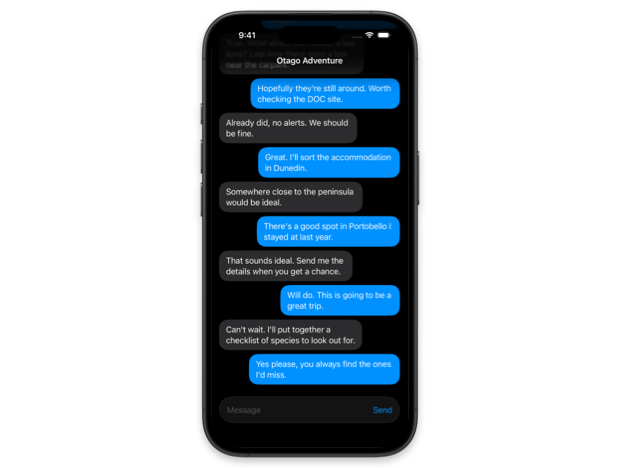
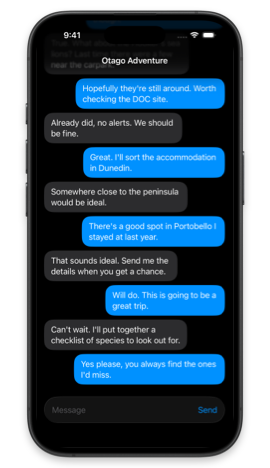
We also have a more precise overload introduced in iOS 18, defaultScrollAnchor(_:for:), which accepts a ScrollAnchorRole for applying the anchor selectively to distinct situations.
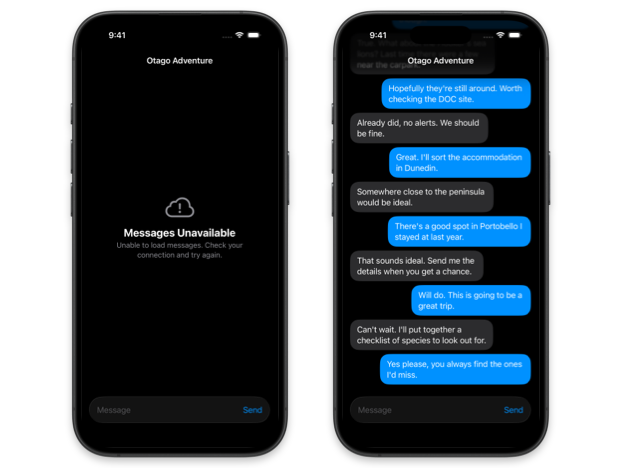
The alignment role, for example, controls how the scroll view positions content that is smaller than its container, without affecting the initial scroll position. This means we can combine it with our existing bottom anchor, so the scroll view starts at the bottom when there is content to fill it, but centers smaller content like an error state.
ScrollView {
    if isUnavailable {
        MessagesUnavailableView()
    } else {
        LazyVStack {
            ForEach(messages) { message in
                MessageView(message: message)
            }
        }
    }
}
.defaultScrollAnchor(.bottom)
.defaultScrollAnchor(.center, for: .alignment)
# Programmatic scrolling with scrollPosition()
While defaultScrollAnchor(_:) and defaultScrollAnchor(_:for:) give us control over where the scroll view starts, once the view is on screen we need a different tool to drive scrolling in response to user actions or app events. iOS 17 introduced scrollPosition(id:anchor:) for this purpose, replacing the proxy-based approach of ScrollViewReader with a state binding. iOS 18 extended the API with a new scrollPosition(_:anchor:) overload that takes a binding to a ScrollPosition value instead of an optional identifier. ScrollPosition can express position as an identifier, an edge, or a raw offset, all through a single state variable.
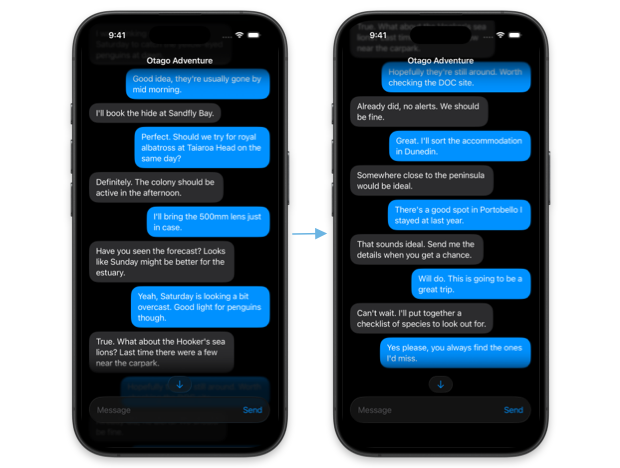
A natural use case for scrollPosition(_:anchor:) could be a "Jump to latest" button in a chat view. When the user scrolls up to read earlier messages, they need a way to go back to the bottom on demand. We can implement this by declaring a ScrollPosition state variable, passing it to the modifier, and calling scrollTo(id:) on it with the last message's ID when the button is tapped. Note that the scrollTo(id:) method requires an explicit id() modifier on each message view so SwiftUI can locate them.
struct ChatView: View {
    let messages: [Message]

    @State private var position = ScrollPosition()

    var body: some View {
        ScrollView {
            LazyVStack {
                ForEach(messages) { message in
                    MessageView(message: message)
                        .id(message.id)
                }
            }
        }
        .defaultScrollAnchor(.bottom)

        .scrollPosition($position)

        .safeAreaBar(edge: .bottom) {
            Button {
                withAnimation {
                    position.scrollTo(id: messages.last?.id)
                }
            } label: {
                JumpToLatestButtonLabel()
            }
        }
    }
}
# Reading the current scroll position
ScrollPosition exposes several properties for reading the current position. The viewID property and viewID(type:) method return the ID of the currently visible item. The edge, point, x, and y properties return the values set programmatically when we scroll to an edge, a point, or a specific offset. The isPositionedByUser property indicates whether the position was last set by a user gesture.
In our chat example, we can use viewID(type:) to show the "Jump to latest" button only when the user has scrolled away from the last message. To make this work reliably, there are a couple of things to be aware of.
For viewID(type:) to update as the user scrolls, SwiftUI needs to know which ID type to track. We can either initialize ScrollPosition with init(idType:) to declare the type upfront, or assign it to a value with an explicit ID, from which SwiftUI can infer the type. In our example, we have to assign the position to the last message's ID in onAppear(perform:) so the button is hidden when the chat view first loads and shows the most recent message. We also need to adjust the anchor of scrollPosition(_:anchor:) to UnitPoint.bottom so that viewID(type:) reflects the bottommost visible item rather than the topmost one.
struct ChatView: View {
    let messages: [Message]
    @State private var position = ScrollPosition()

    private var isAtBottom: Bool {
        position.viewID(type: Int.self) == messages.last?.id
    }

    var body: some View {
        ScrollView {
            LazyVStack {
                ForEach(messages) { message in
                    MessageView(message: message)
                        .id(message.id)
                }
            }
        }

        .scrollPosition($position, anchor: .bottom)

        .onAppear {
            position = ScrollPosition(id: messages.last?.id)
        }

        .safeAreaBar(edge: .bottom) {
            Button {
                withAnimation {
                    position.scrollTo(id: messages.last?.id)
                }
            } label: {
                JumpToLatestButtonLabel()
            }
            .opacity(isAtBottom ? 0 : 1)
        }
    }
}
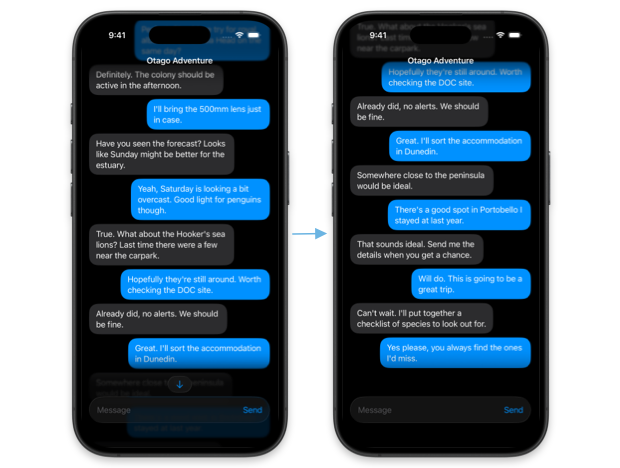
It is worth emphasizing that the viewID property and viewID(type:) method are the only way to track position during manual scrolling by reading the ScrollPosition. The edge, point, x, and y properties only reflect values set programmatically and become nil as soon as the user interacts with the scroll view. For reading raw offset as the user scrolls, onScrollGeometryChange(for:of:action:) is the right tool. It provides access to the full ScrollGeometry of the scroll view and uses a transform closure to reduce the geometry to an equatable value, calling the action closure when that value changes.
The SwiftUI APIs for programmatic scrolling have a lot of moving parts and nuances, as we have seen throughout this post. Understanding which API to reach for in a given situation, how to configure it correctly, and where its limitations are takes some experimentation. But the APIs are also quite powerful, and investing time in exploring them pays off when building scroll-heavy interfaces that feel polished and respond naturally to user interactions.
If you are looking to build a strong foundation in SwiftUI, my book SwiftUI Fundamentals takes a deep dive into the framework's core principles and APIs to help you understand how it works under the hood and how to use it effectively in your projects. And my more recent book The SwiftUI Way helps you adopt recommended patterns, avoid common pitfalls, and use SwiftUI's native tools appropriately to work with the framework rather than against it.
For more resources on Swift and SwiftUI, check out my other books and book bundles.
Work with SwiftUI. Not against it.$35
A field guide to SwiftUI patterns and anti-patterns
The SwiftUI Way
- Avoid common SwiftUI pitfalls
- Build deeper intuition for the framework
- Gain insights from a former SwiftUI Engineer at Apple
Work with SwiftUI. Not against it.
A field guide to SwiftUI patterns and anti-patterns
The SwiftUI Way